Topics
What is a topic?
It is a communication channel over which nodes can exchange messages.
Topics use a publish-subscribe model. Nodes can publish messages to a topic or subscribe to receive messages from a topic. This allows for asynchronous and decoupled communication between nodes.
Each topic is identified by a unique name. Typically named to reflect the type of data being exchanged, such as /sensor_data, /robot_pose, or /image.
Topics have associated message types that define the structure of the data being exchanged.
Messages published to a topic are distributed to all nodes that are subscribed to that topic.

Do not forget
Remember to have the ROS 2 environment properly setup. Perform the following, if the ROS2 package cannot be found when executing it:
source install/setup.sh
See this example:
Look at the error of not being able to find the desired package. This is because the workspace was not configured correctly.

Source the appropriate setup script to correctly configure the environment.

Notice that the sourcing is performed inside the workspace folder. More information on sourcing the environment, check it here.
Important commands. Topics
Make sure to be in a brand new terminal window and no ROS command is currently running.
The following can be performed when working with topics.
1. Listing all topics
To list all available topics, execute:
ros2 topic list
Two topics will we be displayed as a result.
/parameter_events
/rosout
The topic /parameter_events is a global topic which is always present in the ROS 2 network. The nodes use the /paramater_events topic to monitor or change parameters in the network. While the /rosout topic is used for logging messages in the ROS 2 system.
As an example, open two new terminals and execute respectively these two commands:
ros2 run turtlesim turtlesim_node
ros2 run turtlesim turtle_teleop_key
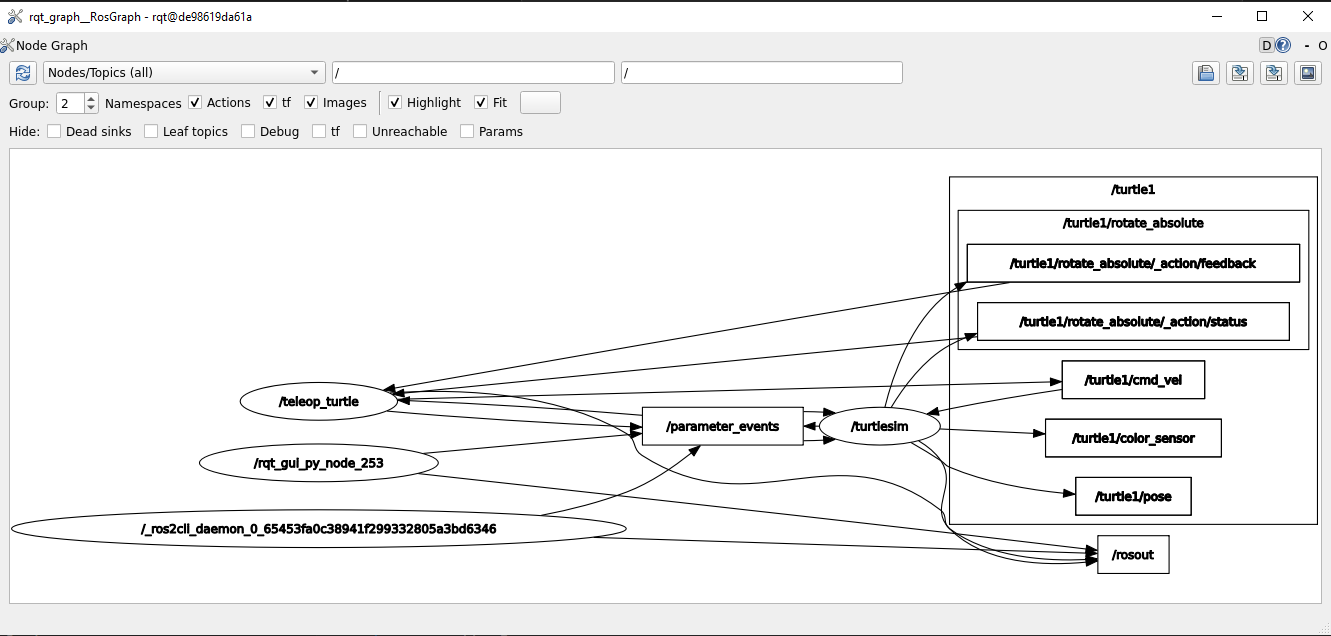
Afterwards, return to the terminal where it was ran ros2 topic list and run it again. The following will be listed:
/parameter_events
/rosout
/turtle1/cmd_vel
/turtle1/color_sensor
/turtle1/pose
Check as well the rqt graph, run:
rqt_graph
See a simplified version of the topics and nodes.
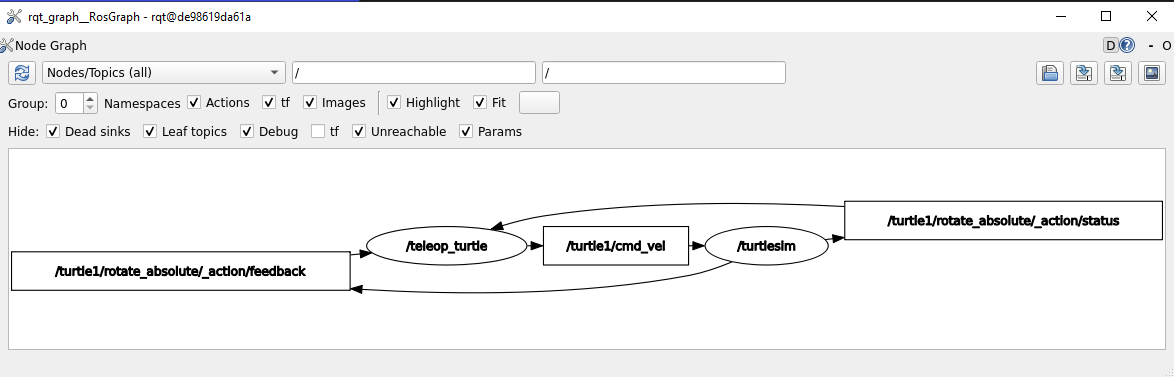
And if all the “hide” options are unchecked, it can be seeen all the topics listed above.
2. Getting info from a topic
The command structure to get the information of a topic, is:
ros2 topic info <topic_name>
Check the example and run the command below:
ros2 topic info /turtle1/cmd_vel
The expected result is:
Type: geometry_msgs/msg/Twist
Publisher count: 1
Subscription count: 1
The information included in the topic consists on:
The type of messages that the topic is handling.
A count of how many nodes are publishing to the given topic.
A count of how many nodes are subscribed to the given topic.
3. Getting info from a topic message
A topic message refers to the data structure used for communication between nodes over a topic. Messages define the format and content of the data being exchanged between nodes. This is the structure of the command to get the information of a topic message:
ros2 interface show <message_name>
As an example, run the code below:
ros2 interface show geometry_msgs/msg/Twist
The expected result is:
# This expresses velocity in free space broken into its linear and angular parts.
Vector3  linear
      float64 x
      float64 y
      float64 z
Vector3  angular
      float64 x
      float64 y
      float64 z
This indicates that the structure of messages that the /turtle1/cmd_vel topic handles, is one which involves two vectors: linear and angular which at the same time, each one of them, includes three float64 variables. This provides insights of how the nodes are working among them and which type of data one node expects from the other.
4. Echoing a given topic
From the terminal window, it is possible to listen to messages that reach a given topic. This is the structure of the command that is capable to perform such a task:
ros2 topic echo <topic_name>
Run the example below:
ros2 topic echo /turtle1/cmd_vel
Nothing will be displayed in the terminal because no messages are being sent to the given topic. However, when going back to the terminal where turtle_teleop_key was executed and the forward arrow key (↑) is pressed, the following will be displayed:
linear:
   x: 2.0
   y: 0.0
   z: 0.0
angular:
   x: 0.0
   y: 0.0
   z: 0.0
---
As it can be seen, this topic handles velocity data. Depending on which arrow key is pressed, the linear or angular velocity data will be modified.
Finally, by looking at the rqt graph and unchecking the “Debug” option, the following is displayed.
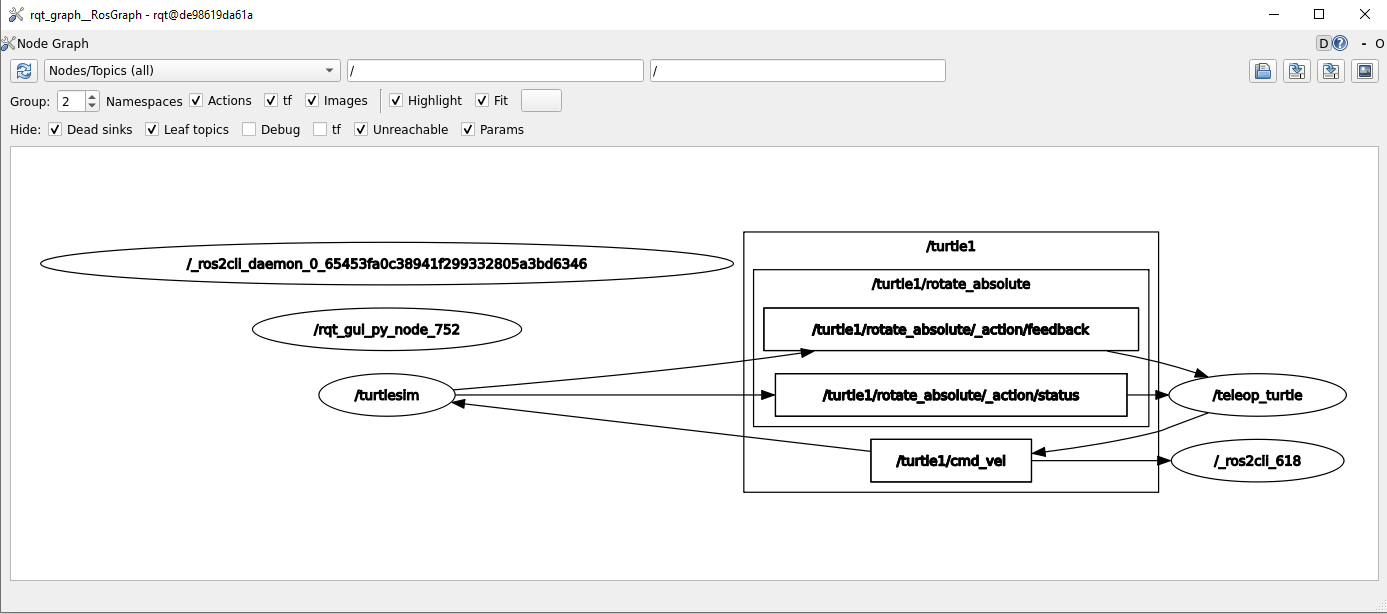
Notice that a new node named /_ros2cli_618 is visible and it is subscribed to the /turtle1/cmd_vel topic. This corresponds to the command: ros2 topic echo /turtle1/cmd_vel.
5. Publishing into a topic
To publish messages to a given topic, the following command structure should be executed:
ros2 topic pub <topic_name> <msg_type> '<args>'
It is specified the topic name which it is desired to pusblish to, the type of message and the message itself.
To see an example of the publishing, end all previous nodes (Ctrl+C in each terminal window) and execute the turtlesim node (ros2 run turtlesim turtlesim_node). Open a new terminal and execute the following:
ros2 topic pub --once /turtle1/cmd_vel geometry_msgs/msg/Twist "{linear: {x: 2.0, y: 0.0, z: 0.0}, angular: {x: 0.0, y: 0.0, z: 1.8}}"
As a result, the turtle animation should move a quarter portion of a cirle and the following should be displayed in the terminal.
publisher: beginning loop
publishing #1: geometry_msgs.msg.Twist(linear=geometry_msgs.msg.Vector3(x=2.0, y=0.0, z=0.0), angular=geometry_msgs.msg.Vector3(x=0.0, y=0.0, z=1.8))
In the above-command the --once part is an optional argument, meaning that the message will be published only once. If the execution changes to be the following one, then the turtle animation would keep on moving in circles.
ros2 topic pub --rate 1 /turtle1/cmd_vel geometry_msgs/msg/Twist "{linear: {x: 2.0, y: 0.0, z: 0.0}, angular: {x: 0.0, y: 0.0, z: 1.8}}"
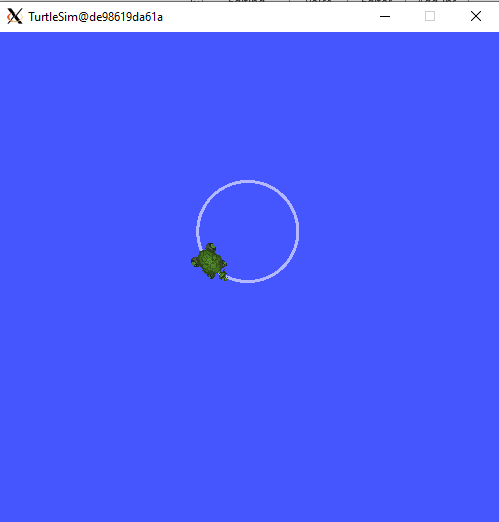
It has been replaced --once by --rate 1 to indicate that the message should be published at 1 hz rate. It should also be displayed in the terminal where the command was executed, the following messages:
publisher: beginning loop
publishing #1: geometry_msgs.msg.Twist(linear=geometry_msgs.msg.Vector3(x=2.0, y=0.0, z=0.0), angular=geometry_msgs.msg.Vector3(x=0.0, y=0.0, z=1.8))
publishing #2: geometry_msgs.msg.Twist(linear=geometry_msgs.msg.Vector3(x=2.0, y=0.0, z=0.0), angular=geometry_msgs.msg.Vector3(x=0.0, y=0.0, z=1.8))
publishing #3: geometry_msgs.msg.Twist(linear=geometry_msgs.msg.Vector3(x=2.0, y=0.0, z=0.0), angular=geometry_msgs.msg.Vector3(x=0.0, y=0.0, z=1.8))
...
The publishing of the message can be stopped by pressing Ctrl+C. Additionally, running rqt_graph in a new terminal, should display something similar to this:
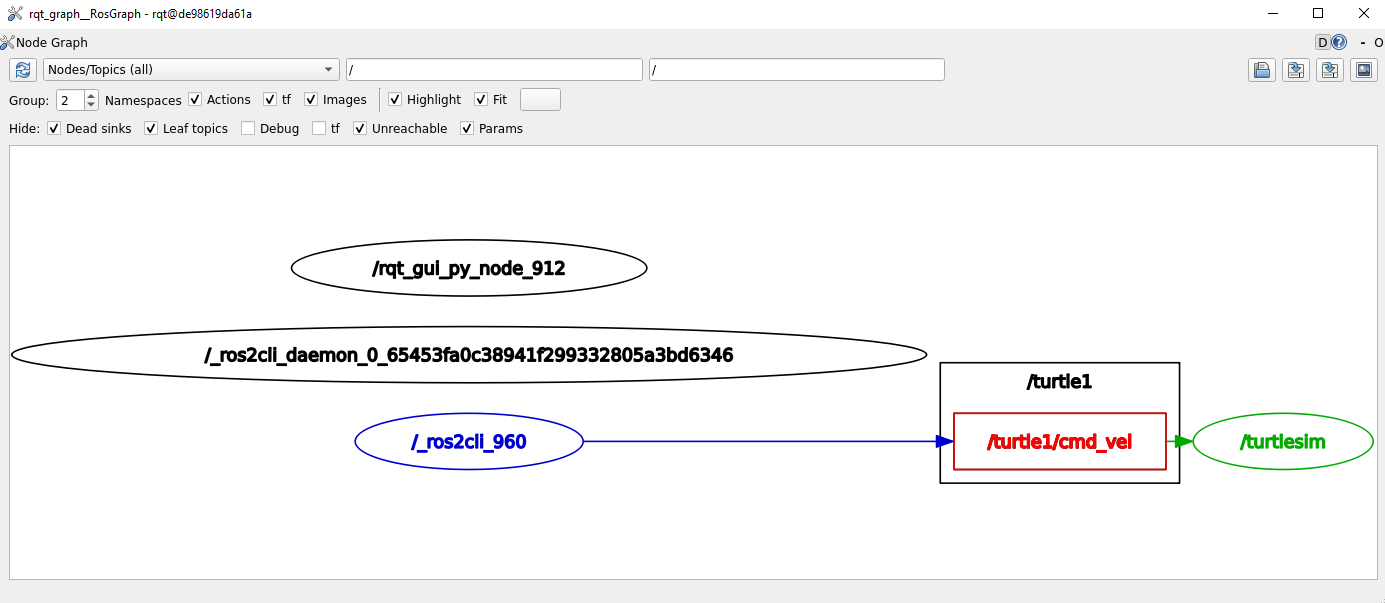
As in the echoing example, a new node is created (/_ros2cli_960) and it is publishing to the /turtle1/cmd_vel topic.
6. Checking a topic working rate
To see the rate at which a topic is handling the messages, the following command structure should be executed:
ros2 topic hz <topic_name>
Open a new terminal and execute the following:
ros2 topic hz /turtle1/cmd_vel
It displays the average rate at which messages are being handled in the given topic. The expected results are these messages displayed in the terminal window.
average rate: 1.000
      min: 0.998s max: 1.002s std dev: 0.00044s window: 247
average rate: 1.000
      min: 0.998s max: 1.002s std dev: 0.00044s window: 248
average rate: 1.000
      min: 0.998s max: 1.002s std dev: 0.00044s window: 250
...
Chek that the average rate is at 1.00, which is expected, since the publishing rate that was issued before, was exactly 1.0. It was indicated in this part of the command execution: ros2 topic pub --rate 1 ....